
How To Edit the Column Layout of a CSV File - Rons Data Edit
Rons Data Edit provides several ways to modify the structure of a CSV file. You can add, remove, rename, move, duplicate, and reorganize columns using the application's column management tools, the Edit Schema panel, or the View Layout side panel.
Before making changes, open your CSV file in Rons Data Edit (Download Page).
To open a file, select File → Open Document, or use the Open Document link on the Start Page.
Methods for Editing Column Layouts
Rons Data Edit offers three different approaches to managing column layouts:
- Edit Columns Directly for quick column operations.
- Edit Schema Panel for advanced schema management.
- View Layout Side Panel for visual layout changes that can be synchronized with the actual document structure if needed.
Edit Columns Directly
The Columns menu provides direct access to the most commonly used column editing operations.
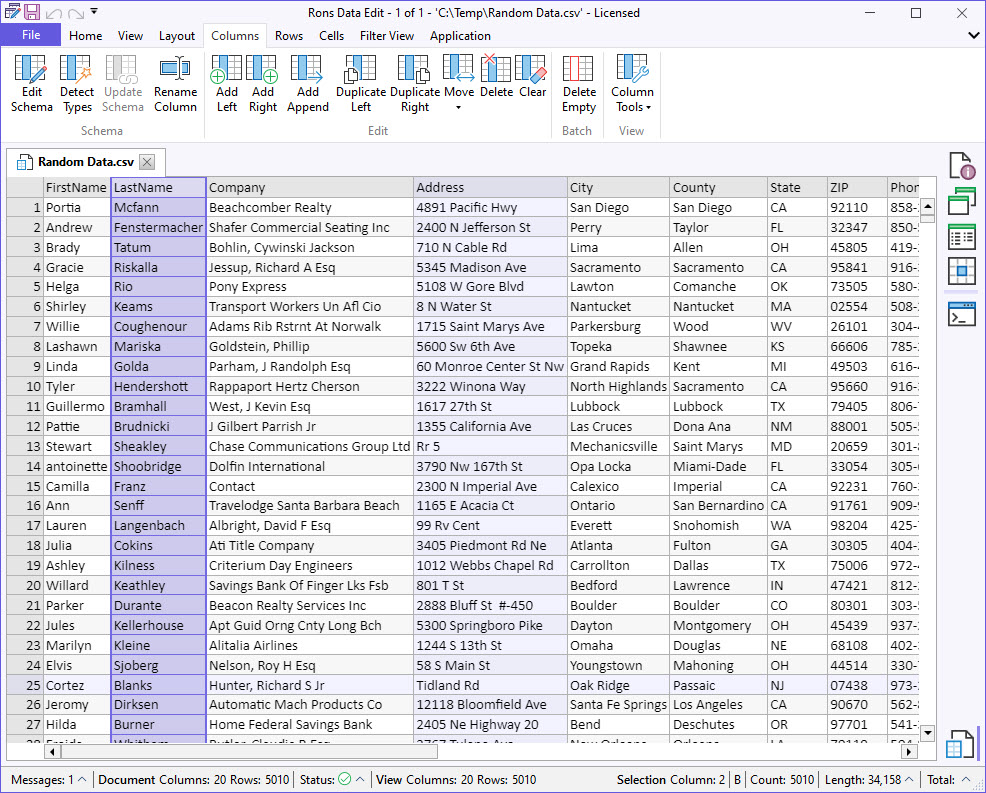
Column operations:
- Rename columns
- Add columns to the left or right of an existing column
- Append new columns to the end of the document
- Duplicate columns
- Move columns to a different position
- Delete columns
- Clear column contents while keeping the column
- Detect and assign column data types
- Open the Edit Schema panel for advanced layout editing
- Access additional column tools such as Split, Merge, and Pivot
Also, you can:
- Use Delete Empty to remove columns that contain no data.
- Use Detect Types to automatically assign data types.
Available Column Commands
| Description | Options | Explanation |
|---|---|---|
| Edit Schema | The Edit Schema pannel is a pannel that allows to sort, rename and attribute a type to column. See S | |
| Detect Types | When clicking on Detect Types after selecting one column or the whole document the application detec | |
| Update Schema | When the column layout has been be arranged using viewing options, such as, for example, hidding a c | |
| Rename Column | Select a column and click on Rename Column to open the cell field and type in the new name. | |
| Add Left | Select a column and add a new empty column to the left. | |
| Add Right | Select a column and add a new empty column to the right. | |
| Duplicate Left | Select a column and duplicate it as a new column to the left. | |
| Duplicate Right | Select a column and duplicate it as a new column to the right. | |
| Move | << First | Select a column and move it as the first column on the document. |
| < Left | Select a column and move it one column to the left. | |
| > Right | Select a column and move it one column to the right. | |
| >> Last | Select a column and move it as the last column on the document. | |
| Show Panel | Show Pannel opens a pop up pannel with << < > >> arrows to move columns more easily across the docum | |
| Delete | Select a column and delete it. | |
| Clear | Select a column and remove its content without removing the column. | |
| Delete Empty | Select the whole document and remove any column that has no content. | |
| Column Tools | Split | To open the Split Column tool. See How To Split Columns in a CSV File |
| Merge | To open the Merge Column tool. See How To Merge Columns in a CSV File | |
| Pivot | To open the Pivot Column tool. See How To Pivot Columns in a CSV File |
Edit Columns Using the Edit Schema Panel
The Edit Schema panel provides a comprehensive way to manage a document's column structure.
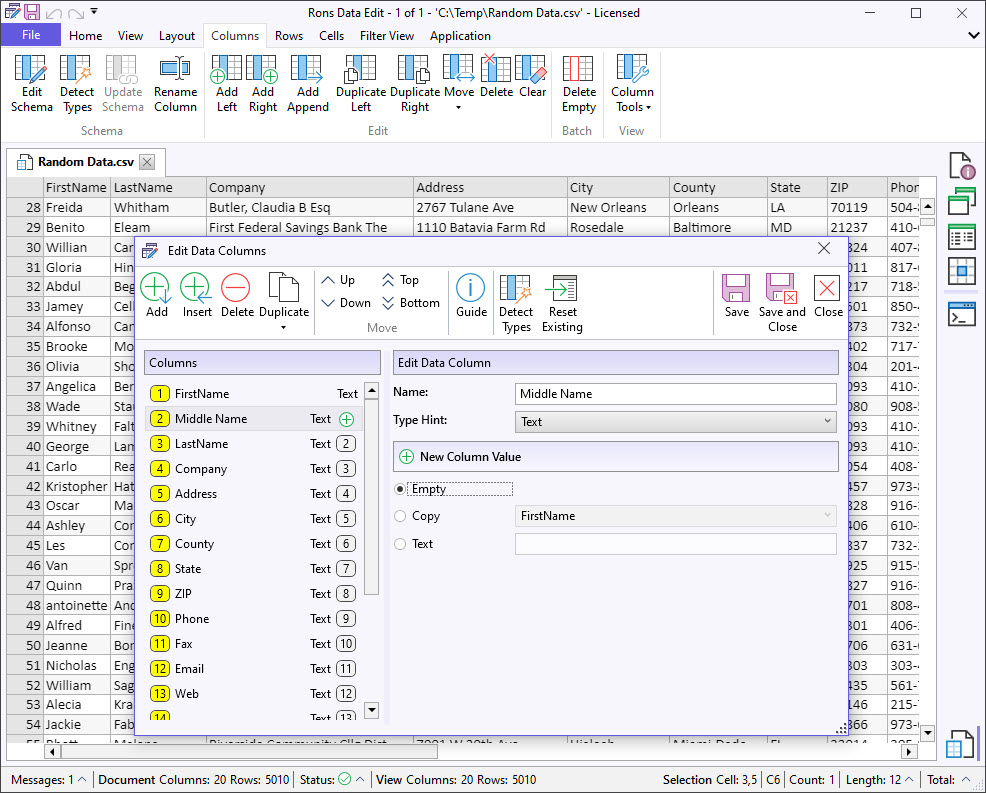
To open the panel, select Edit Schema from the column management options.
Unlike visual layout changes, schema modifications directly affect how the document is stored when saved.
Within the panel, columns are displayed vertically and can be:
- Reordered
- Renamed
- Inserted
- Deleted
- Duplicated
- Assigned data types
The Detect Types function can automatically identify and apply appropriate column types.
See the below table for a description of the 'Edit Schema" panel buttons.
The 'Edit Schema' Buttons
| Description | Options | Explanation |
|---|---|---|
| Add | Add a column at the end of the list. | |
| Insert | Insert a column above a selected one in the list. | |
| Delete | Delete a selected column. | |
| Duplicate | - (Copy) | Duplicate a selected column. If Duplicate (Copy) is selected the exact column and it content will be |
| - (Text) | Duplicate a selected column. If Duplicate (Text) is selected the same column name will be copied wit | |
| Up/Down | Up and Down buttons can be clicked on to move the columns accordingly. | |
| Top/Bottom | Top and Bottom buttons can be clicked on to move the columns accordingly. | |
| Guide | Local Guide available to explain the Edit Schema panel. | |
| Detect Types | When clicking on Detect Types the application detects and attributes a type to each column. Types ca | |
| Reset Existing | Reset the columns as they were. This is possible as long as the pannel view has not been saved. | |
| Save | Save the document and leave the pannel open. | |
| Save and Close | Save the document and close the panel. | |
| Close | Close the pannel without saving. | |
| Columns Section | The 'Selected Columns' section displays the columns where the split data is going to be displayed. | |
| Edit Data Column Section | Name | Editable field where a column can be renamed. |
| Text Hint | List of Types that may be assigned to the selected column. Types can be the following: Text, Time, D |
Additional options are displayed when a new column is added or inserted:
| Edit Data Column Section | Name | Editable field where a column can be renamed. |
|---|---|---|
| Text Hint | List of Types that may be assigned to the selected column. Types can be the following: Text, Time, D | |
| New Column Value | Empty | When selected the column won't contain any value. |
| Copy | When selected the column will contain the same values as the existing column chosen from the dropdow | |
| Text | When selected, any value can be typed in the dedicated field and the value will be displayed in the |
Edit Columns Using the View Layout Side Panel
The View Layout side panel provides a flexible way to reorganize columns visually before applying those changes to the document structure.
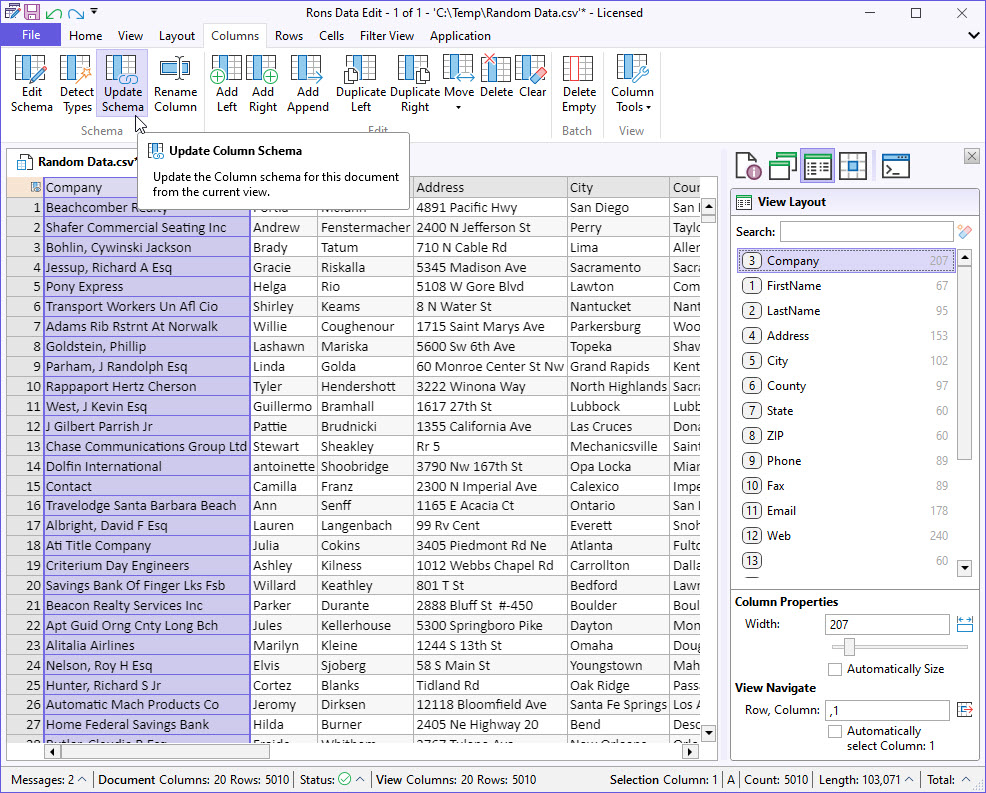
Open the View Layout panel using the corresponding sidebar icon or from the top menu (Layout → Show Layout).
This panel is primarily designed for display and navigation, allowing you to:
- Hide columns
- Freeze columns
- Move columns left or right (Right-click options)
- Sort columns ascending or descending
- Adjust the visible layout of the document
These changes can be reset at any time using the Reset command from the View menu or the context menu.
If you want the visual layout changes to become part of the document structure, click Update Schema in the Column menu.
Undo and Redo remain available until the document is saved.
We'd Love to Hear From You
If you have any questions about Rons Data Edit or would like to share feedback, please contact us using our Contact Form.
Related Information
- A Perfect Excel alternative to handle CSV files
- How to open and view a CSV file
- Rons Data Edit for e-Commerce
- Text Encoding and Languages in CSV Files
- What is a CSV File
- What is the best CSV Editor
- What is the Difference between Rons Data Edit and Rons Data Stream
CSV Editing
Rons Data Edit


