
Rons Markdown Edit - Desktop Markdown Editor
A Windows Markdown editor for writing, previewing and organising documents.
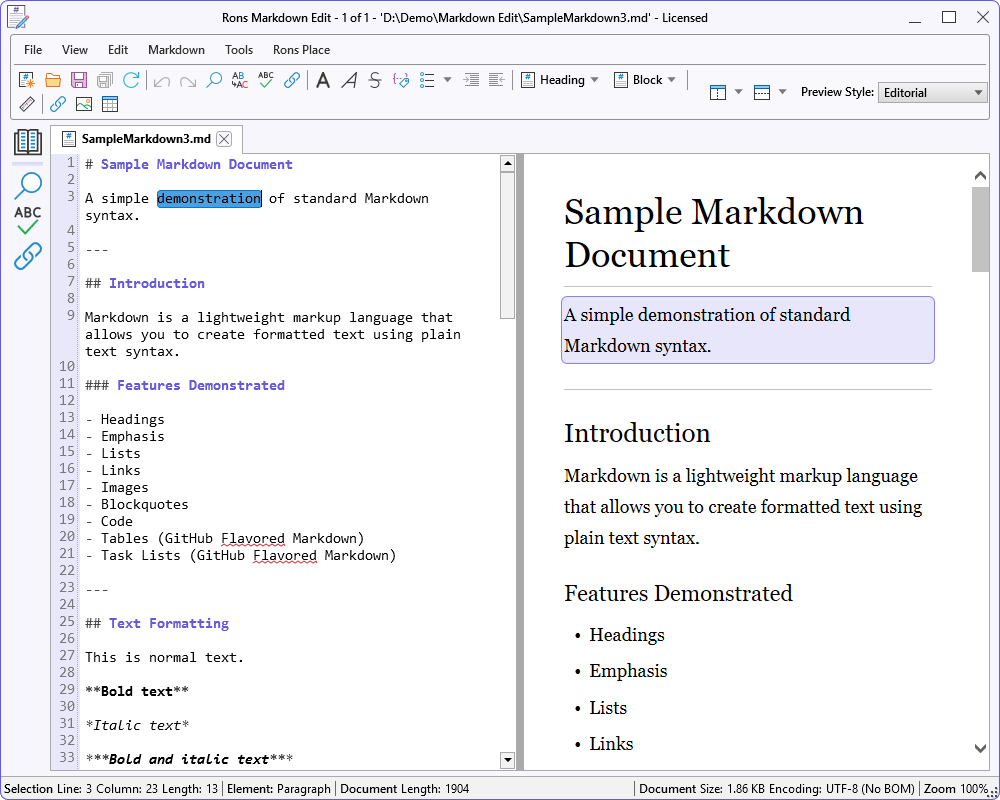
Rons Markdown Edit in action (light)
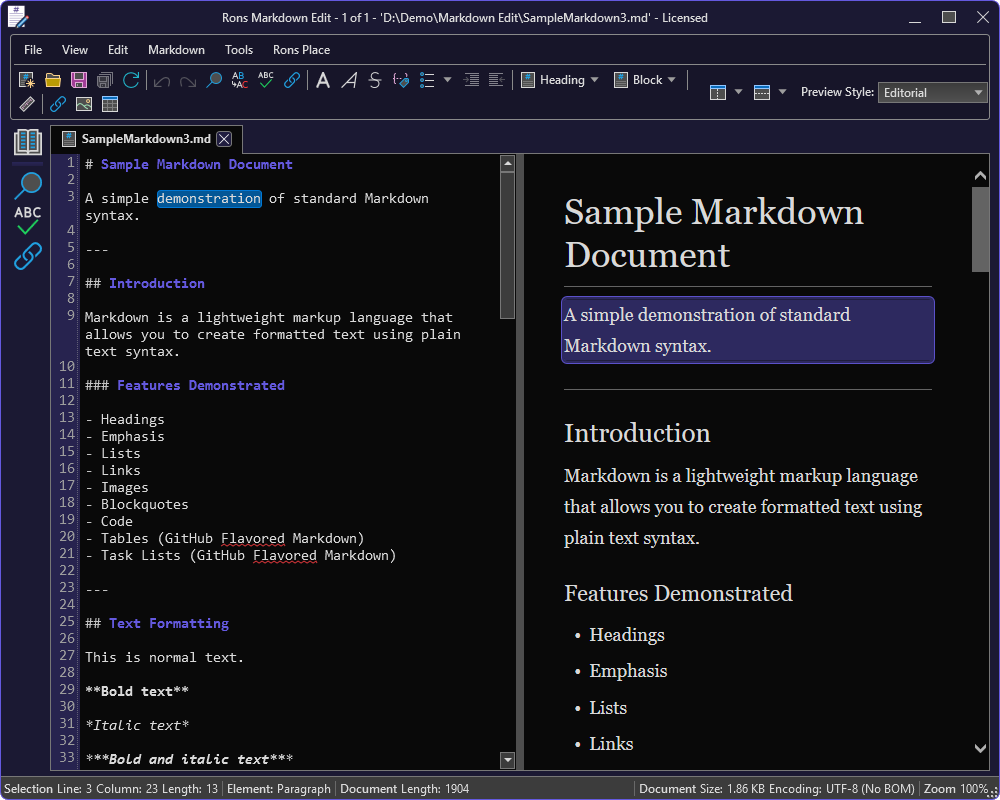
Rons Markdown Edit in action (dark)
What is Rons Markdown Edit?
Rons Markdown Edit is a desktop Markdown editor, reader and manager for Windows.
It has been designed around a pure Markdown editing experience and supports that goal in every possible way, without straying from it. Direct formatting commands are available for simple elements such as bold, italic, headings, and lists, while more advanced editors for quotes, links, images, code, and tables open in their own dedicated windows. For an overview of our design philosophy see our What a Markdown Editor should be article.
Rons Markdown Edit keeps the document as Markdown and shows the finished page beside it. Write in the text, apply formatting from the menu, and check the result in a live HTML preview. Open several files in tabs, or keep one document to a window. Open a folder to search, spell-check and link-check across multiple files. For the full list, see the features page.
Who is Rons Markdown Edit for?
- Writers and technical authors – Draft notes, articles and documentation in Markdown, then read the page in the preview.
- Developers – Edit README files, code samples and project notes without leaving a desktop editor.
- Anyone keeping a folder of Markdown – Open a location, then create, move, search and check the documents from one window.
Why choose a desktop application?
A desktop editor keeps the files on your computer. Notes, drafts and private documentation stay local, and large documents still open when you are offline.
Write Markdown in the text
The editor is a text editor with Markdown colouring, and toggle line numbers, wrap, spaces and tabs. Font and zoom are yours to set. Undo and redo cover the editing session.
Select text and apply the usual Markdown marks both directly for the simple elements or in their own window for the more complex.
Drop an image file on the text to open the image editor with that file already chosen. Dropping it onto an image that is already there keeps the text and title, and points the image at the new file.
Format tidies the whole document as Markdown, HTML or plain text. Format Convert reads a Markdown document, including any HTML in it, and writes it back as formatted Markdown.
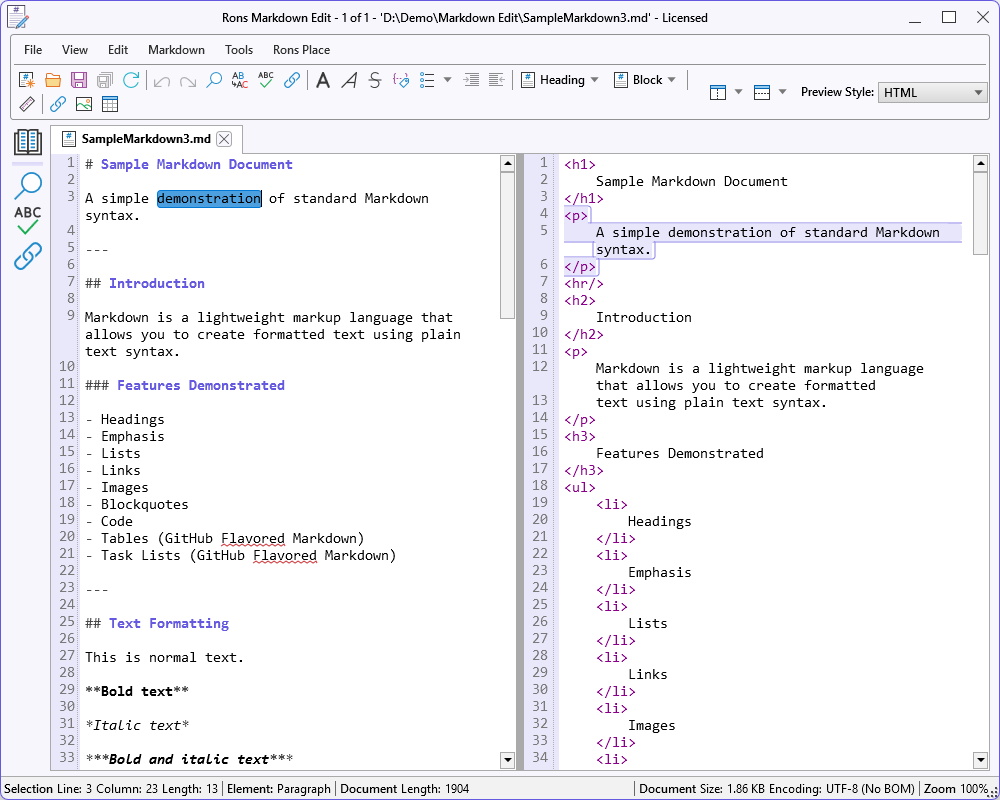
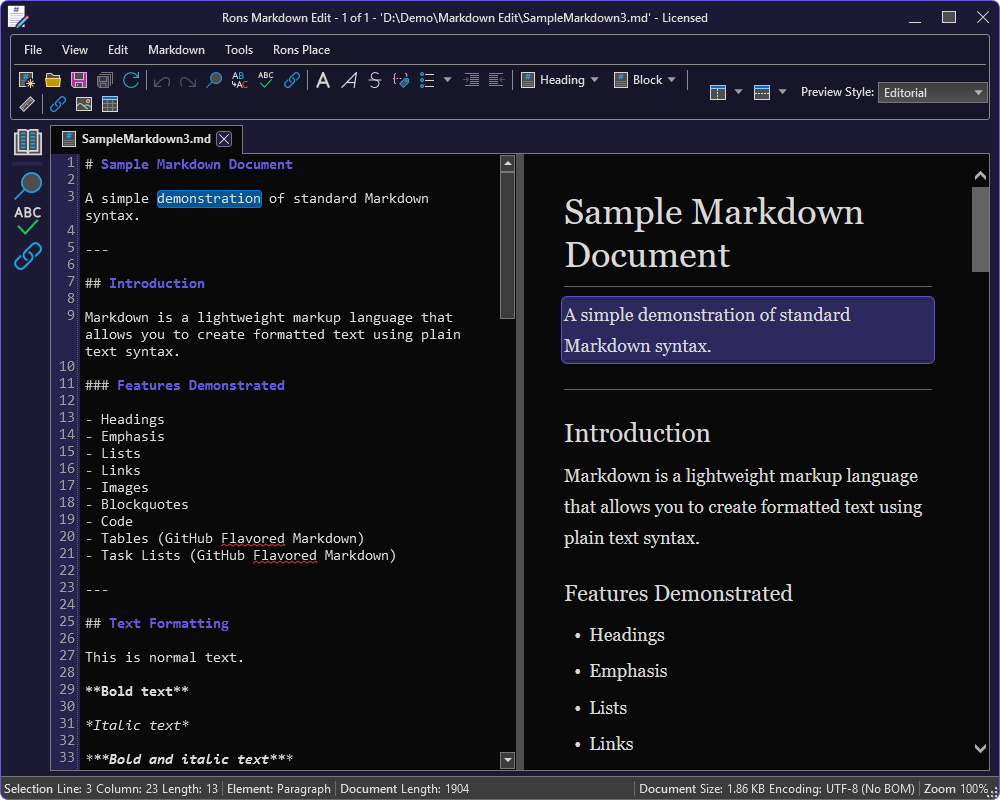
Read the page while you write
HTML preview sits beside the document or below it, and it can be hidden when you want the text alone. The preview follows the current theme and offers five page styles: Plain, Editorial, Newsletter, Soft and Brief. Choose HTML in that list when you want the generated markup instead of a styled page.
Copy a selection as it stands, as readable text with the Markdown removed, or as HTML. Paste HTML back in as Markdown. That is the path from a browser or another editor into a Markdown file, and back out again as a page or as plain text.
Editors for the awkward parts
Quotes, tables, links, images and fenced code blocks each open in their own window, so you edit the element and write the Markdown back into the document.
- Quotes – Edit the quote with the same Markdown commands, and add an optional author on its own line.
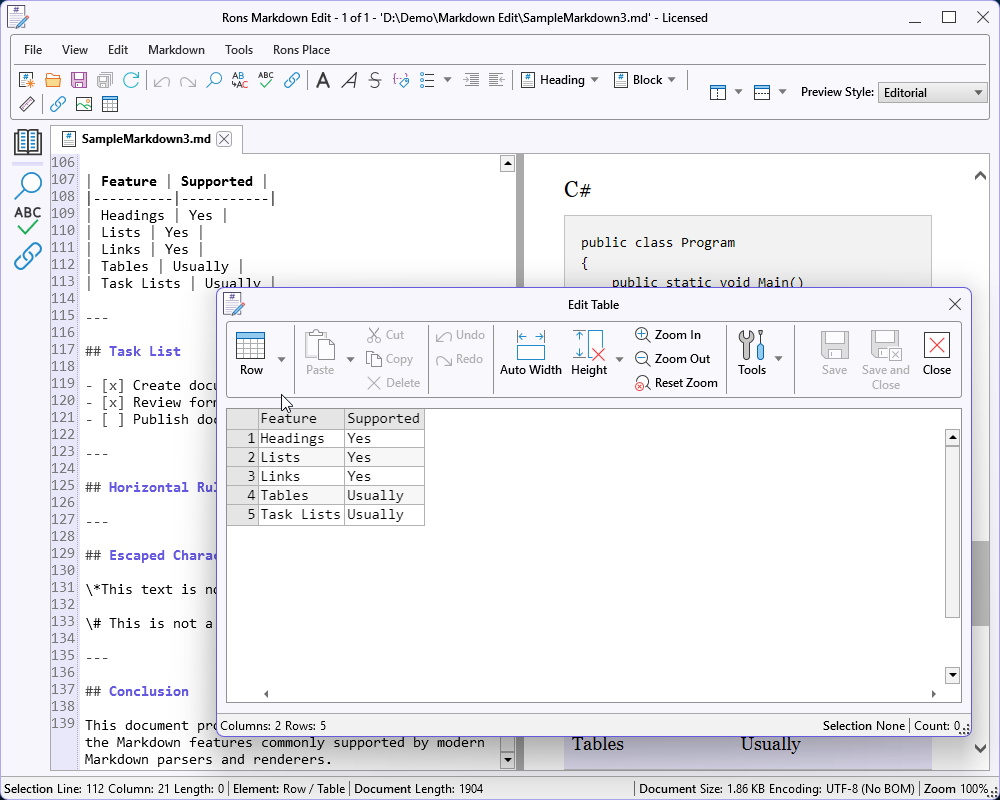
- Tables – Add, duplicate and delete rows, sort them, drop empty or duplicate rows, and paste into the grid. Size the columns, and set the row height to one line, to the number of lines, or wrapped to the cell text.
- Links and images – Set the address and the text or alt text without hand-editing the markup.
- Code blocks – Pick a language. Highlighting covers the common set, including C#, JavaScript, TypeScript, Python, SQL, HTML, JSON, XML and YAML.
Images opened from disk get their own page, with a properties panel for the file.
Find, replace and spell
The search panel finds the next and previous match. Turn on replace when you want to change the current match or every match. Matching can be case-sensitive, whole word, or a regular expression.
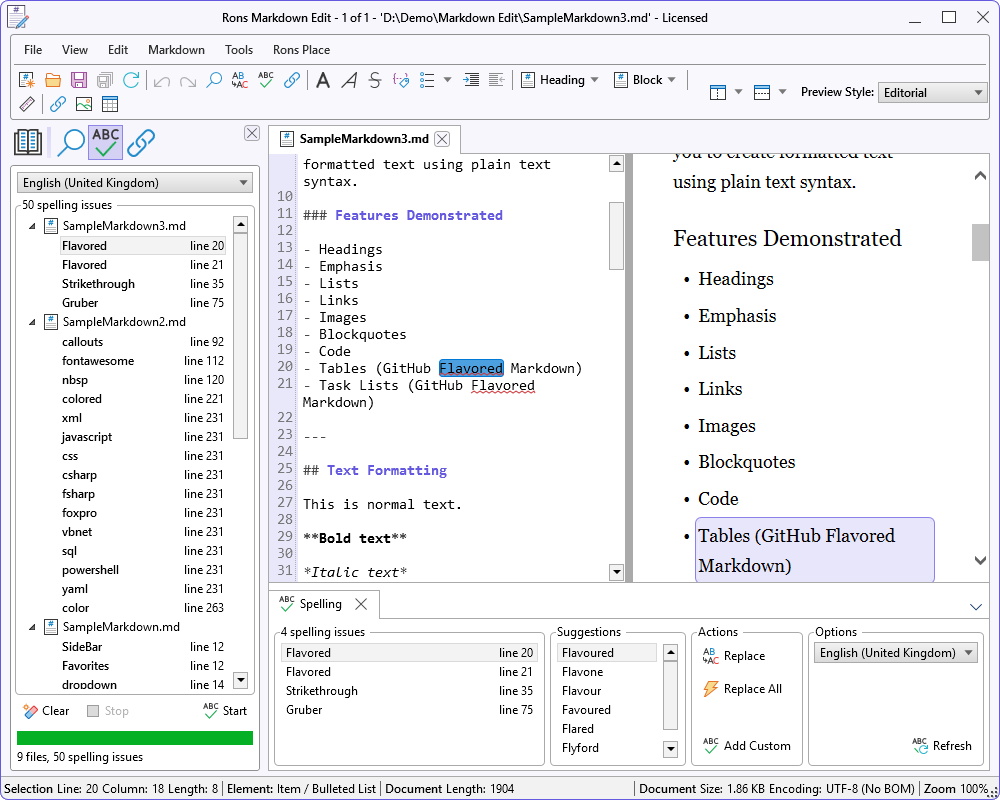
Spelling can run in the background and underline issues while you type, or you can open the spelling panel and work through them. Suggestions are also on the editor menu. Add the word at the caret to a custom dictionary, which is accepted in every language, and manage that list in Options.
Links lists every address in the document and marks it Exists, Moved, Missing or Other. A web address is requested. A file link is checked from the folder of the saved document. Change an address, or remove a link that is missing or could not be checked, from the panel.
Organise the files around the document
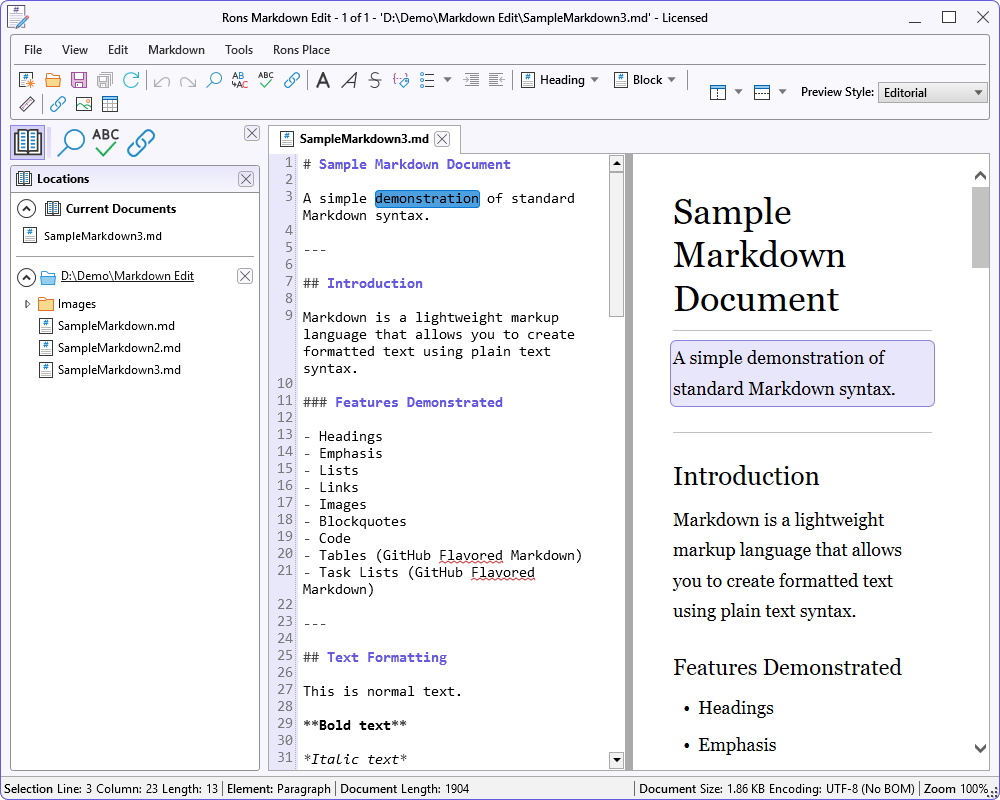
Open a location and browse its folders and files from the side panel. Create a folder or a new document, rename or delete an item, cut, copy and paste files and folders, and copy a full path or a path relative to the location. Reveal the folder in Explorer. Recent locations and recent files are remembered.
With a location open, that panel can also search the folder, spell-check it, or check its links. Markdown, HTML and plain text files are included, including files in subfolders. Results are grouped by file, and opening a result takes you to that place in the document. Replace writes each match back to the file. A file that is already open is changed in the editor.
New documents use your default encoding and line ending, including the option of a trailing blank line. Work in one window per document, or in a tabbed window that holds many.
What now?
The feature list covers formatting, preview, spelling and file handling in more detail.
To try Rons Markdown Edit, download it and install, or run the portable build.
Rons Markdown Edit Options


 Rons Markdown Edit Pro
$30.00
 |
Advert banner free |
|
All editing features available |
|
Fully Pro |

Related Information
Rons Markdown Edit


